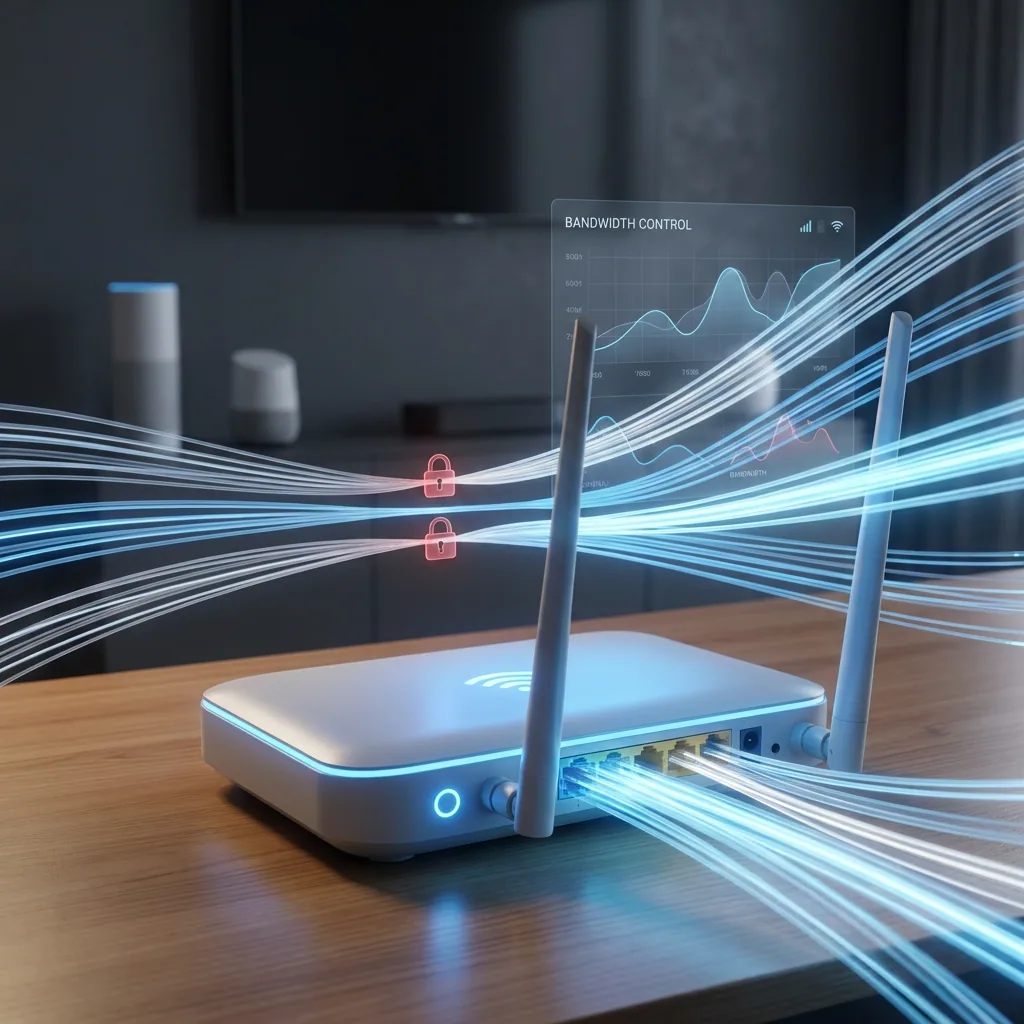
If one device in your house is eating all the bandwidth, a gaming console, a 4K streaming TV, or someone's perpetually-downloading laptop, you can fix that by setting bandwidth limits at the router level. This guide shows you how to control per-device bandwidth on a Spectrum network, even when Spectrum's own hardware gets in the way.
Understand What Your Spectrum Router Can Actually Do
Most people log into their Spectrum router expecting a full admin dashboard with QoS sliders and per-device speed caps. What they find instead is a page where you can change the Wi-Fi password and not much else.
Spectrum's ISP-provided routers, the SAX1V1K and similar models, have intentionally locked-down interfaces. QoS and bandwidth limiting simply aren't available. The most common misconception is that 192.168.1.1 will reveal a hidden settings menu with these controls. It won't. You'll get a stripped-down dashboard, and the traffic management options just aren't there.
The Spectrum app does let you pause devices, but pausing is all-or-nothing. There's no way to say "give this device 20 Mbps and no more." For actual bandwidth limiting, you need a router that supports it, or software that operates at the network level and doesn't depend on the router's built-in controls at all.
Decide Whether to Replace or Add a Router
You have two solid options. The first is to replace Spectrum's router entirely with a third-party model that supports QoS. The second is to keep Spectrum's gateway in modem-only mode (sometimes called IP passthrough or bridge mode) and connect your own router behind it.
Bridge mode is worth the extra setup step if Spectrum's gateway is also handling your modem functions.
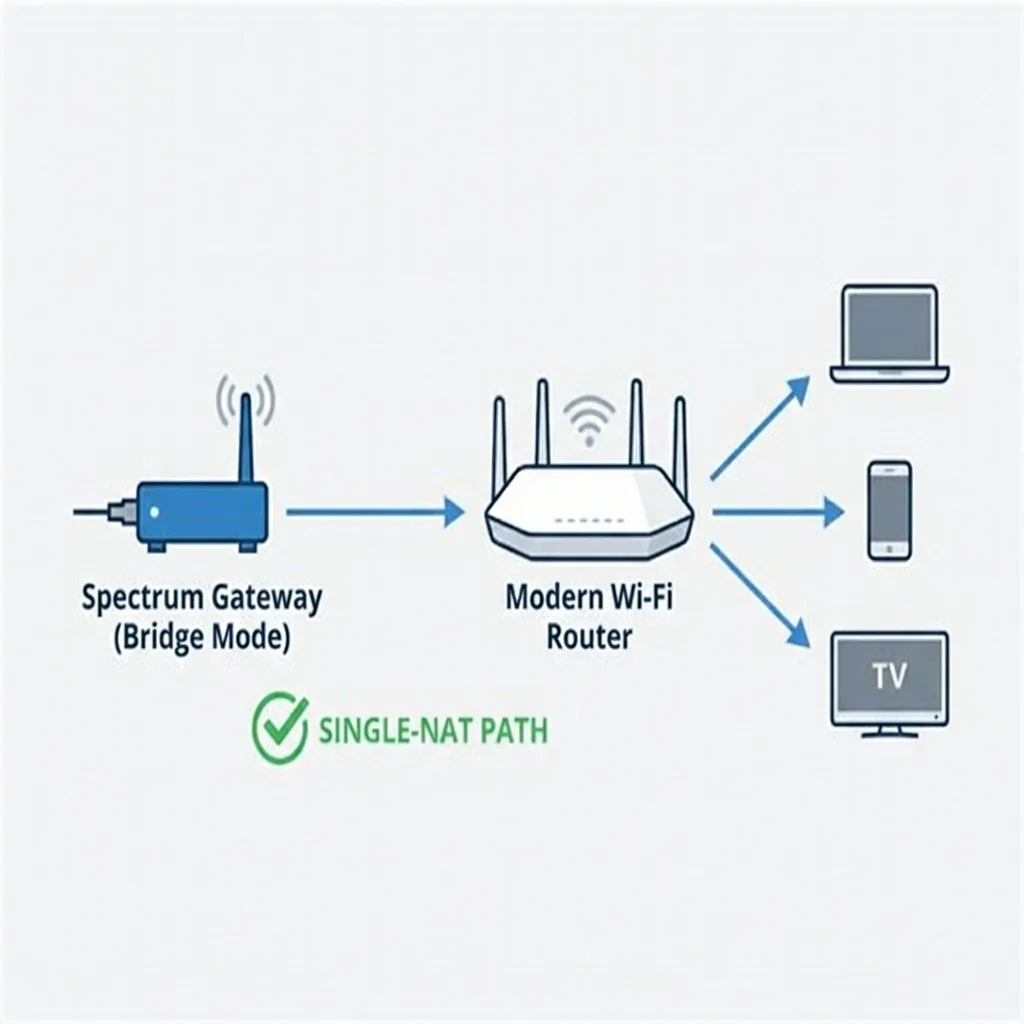
It prevents double-NAT issues, where your traffic passes through two separate routers and causes connection problems for gaming or video calls. Most Spectrum gateways support this, the setting is usually under Advanced > IP Passthrough in the Spectrum router's admin panel.
For the third-party router itself, ASUS, TP-Link, and Netgear all make models that support true per-device rate limiting. "True" is the key word here, many cheaper routers advertise QoS but only let you set priority tiers, not actual speed caps. ASUS's Traditional QoS and TP-Link's Bandwidth Control are two options that let you set a hard Mbps ceiling per device. The TP-Link Archer A9 runs around $60-$80 and handles this well for most households. The ASUS RT-AC68U does the same at $100-$140 with a slightly more intuitive interface.
For small business environments or shared office networks where one team's video calls are constantly wiping out everyone else's connection, router-level QoS can still fall short. In those cases, network-level bandwidth management software, like Perimetery PRO, which enforces per-device policies without requiring any agent installation, gives IT teams far more granular control than any consumer router's built-in settings.
Set Up Bandwidth Limits on Your New Router
Once your third-party router is connected and running, the setup process takes about ten minutes. The exact menus vary by brand, but the logic is the same across all of them.
ASUS
Log into your router at router.asus.com or 192.168.1.1, go to Adaptive QoS, and switch the QoS type from Adaptive to Traditional QoS. From there, add a rule under User-defined QoS Rules using the device's MAC address and set your upload and download caps. Using the MAC address here matters, it's what keeps the rule attached to the right device even after a reboot, which is the single most common reason bandwidth rules stop working overnight.
TP-Link
Open the admin panel at 192.168.0.1, navigate to Advanced > QoS > Bandwidth Control, and enable it. You'll need to enter your total line speed first (what Spectrum actually gives you), then add a rule for the specific device IP or MAC address with a max upload and download rate. The interface is straightforward, and changes apply immediately without a restart.
Netgear
Open the Nighthawk app, tap Settings, and look for QoS Settings or Traffic Meter depending on your model. Select the device from your connected list and assign it a speed cap or priority tier. Netgear's QoS is slightly less granular than ASUS or TP-Link on lower-end models, so if fine-grained per-device caps are the priority, Netgear is the third choice of the three.
Watch out for: tying bandwidth rules to IP addresses instead of MAC addresses. DHCP reassigns IPs after reboots, so your limit can end up on the wrong device entirely. Always use the MAC address when the router gives you the option.
Confirm the Limits Are Actually Working
After saving your rules, run a speed test directly on the device you just limited. Most people skip this and assume the settings took effect. They often haven't, especially on first setup, where a router restart is sometimes required before rules apply.
Speed test apps work fine for this.
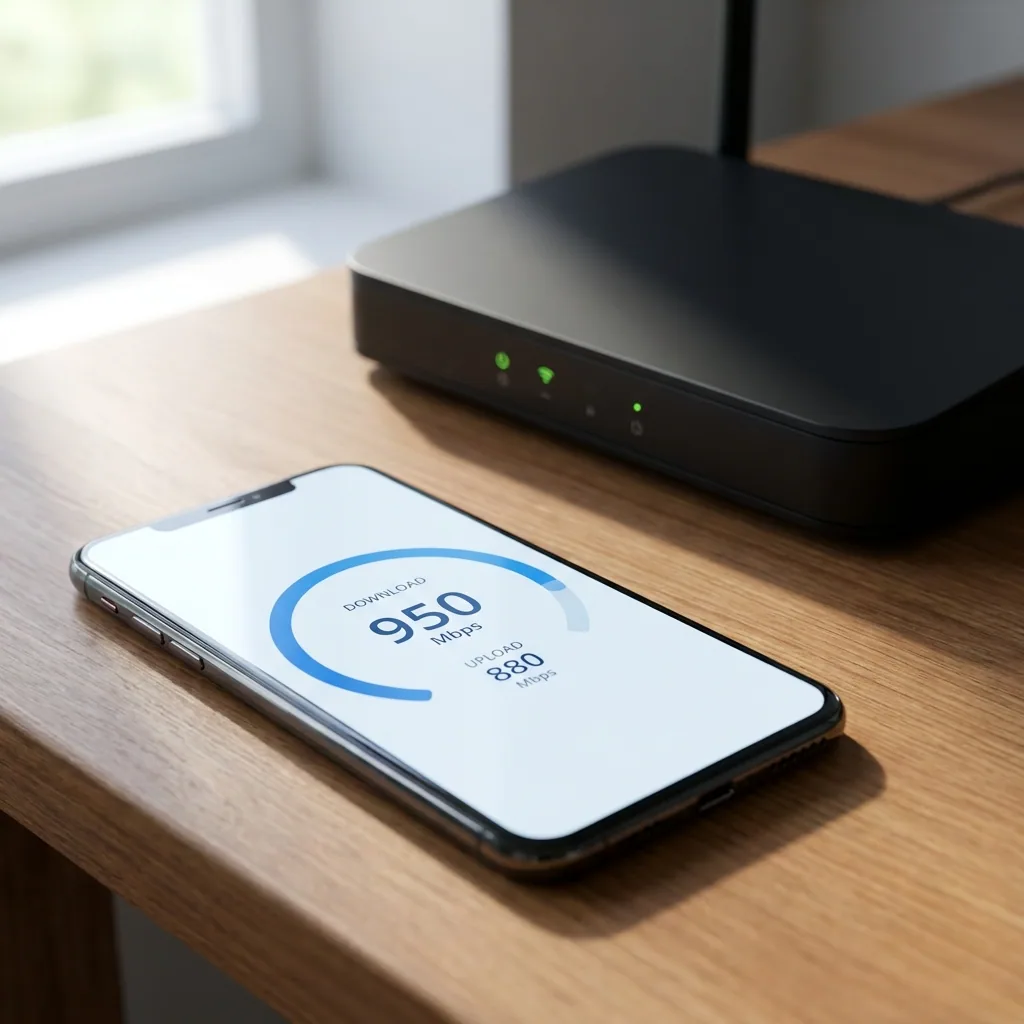
Run the test on the limited device and compare the result to the cap you set. If the numbers don't line up, check that the rule is saved and that you used the correct MAC address. The MAC address printed on a device's label and the one your router actually sees are occasionally different, some devices use randomized MACs by default. On iPhones, this is under Settings > Wi-Fi > your network > toggle off "Private Wi-Fi Address."
The most common failure mode isn't the router setup, it's that the device itself is spoofing its MAC address, so the rule never attaches. Turning off MAC randomization on the device usually resolves it. In environments with many devices cycling on and off the network, this problem multiplies fast, which is where purpose-built tools that track devices by MAC across IP changes earn their keep.
In short: Spectrum's built-in router won't do bandwidth limiting, but any QoS-capable third-party router will, and the setup takes about ten minutes once you're in the admin panel.
Once your limits are in place and verified, the whole network tends to feel more stable, not just for the device you throttled, but for everything else that was getting squeezed. If you want to go further, most of these routers also let you set schedules, so a gaming console can have full bandwidth overnight and a tighter cap during work hours.
Frequently asked questions


See every device on your network
Perimetery PRO shows live upload and download per device, and lets you cap or block any of them in one click. Runs on one Windows machine, no agents to deploy.
See pricing