
Not every router lets you control how much internet each device gets, but the ones that do can be the difference between a functional shared network and a daily argument about who's hogging the connection. The ability to limit bandwidth per device is a specific feature, and most routers bury it, mislabel it, or don't have it at all, something IT managers and network administrators running multi-device environments tend to discover at the worst possible time.
What "Bandwidth Limit Per Device" Actually Means in Practice
Bandwidth limiting per device means you assign a maximum upload or download speed to a specific device on your network. Your router identifies each device by its MAC address or IP address and caps how much of your total connection it can use. So if your total bandwidth is 200 Mbps and you cap a device at 50 Mbps, the rest of the network keeps the remaining 150 Mbps no matter how hard that device pushes.
The technology behind this is called QoS, or Quality of Service. Basic QoS prioritizes certain traffic types, it doesn't set hard limits. Advanced QoS lets you assign specific upload and download caps per device. The confusion between these two is where most buyers end up disappointed: they buy a router marketed as having "QoS support," set it up expecting hard caps, and find out it only lets them say one device is more important than another. That's not the same thing, and in a shared office or multi-department environment, prioritization alone won't stop one user's backup sync from grinding everyone else's video calls to a halt.
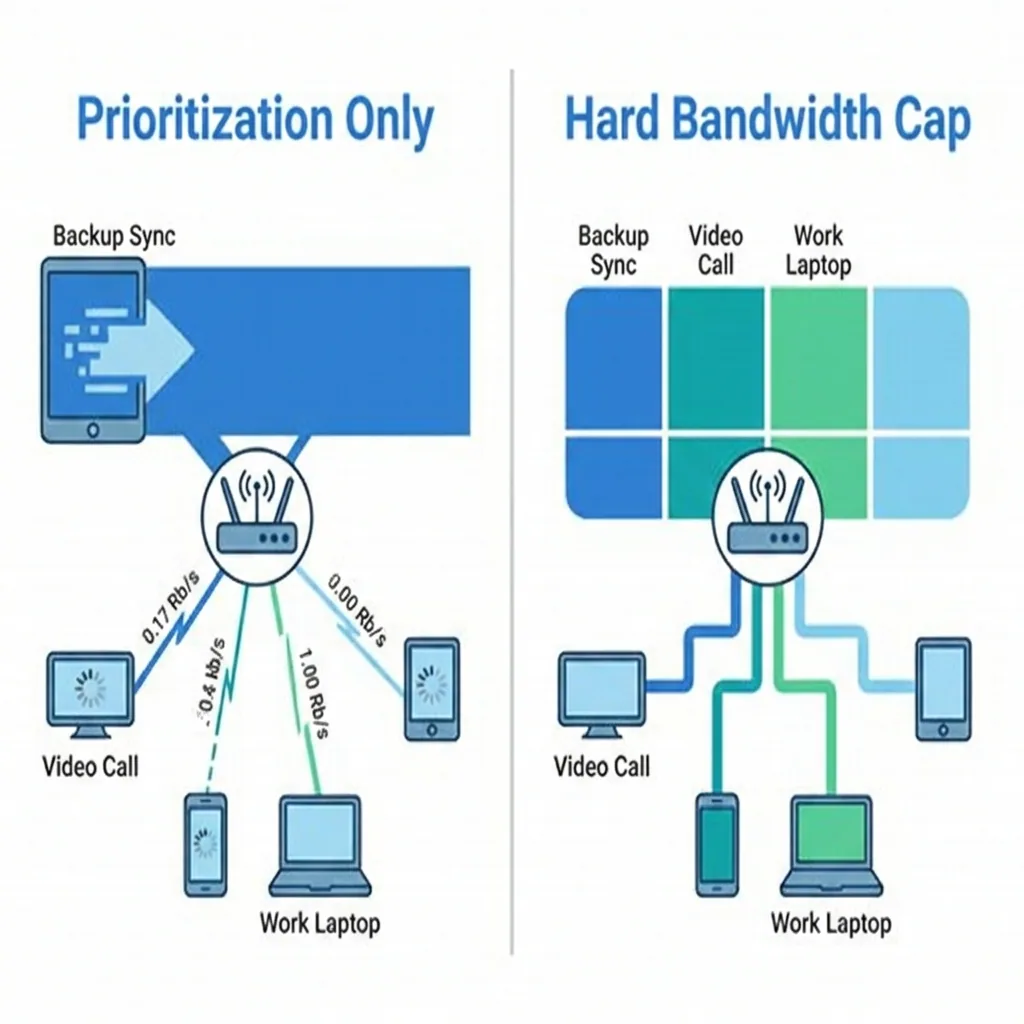
Routers marketed with "QoS support" often only offer traffic prioritization, not hard bandwidth caps, check the specs for "bandwidth limit per device" or "client rate limiting" before buying.
Netgear's QoS Setup Has One Step Most People Skip
Netgear's per-device bandwidth control lives inside their QoS settings, and the path isn't always intuitive. Log into the router at routerlogin.net or 192.168.1.1, then go to Advanced > Setup > QoS Setup. Enable QoS and set your internet connection speed, both upload and download. This baseline is what the router uses to calculate all limits, and skipping it is the most common reason the feature appears to do nothing. If that field is blank or wrong, percentage-based limits won't calculate correctly and you'll see no change in behavior.
Once that's set, go to "QoS Priority Rules" and click Add Priority Rule. Select "MAC Address" from the dropdown, enter the device's MAC address, and assign a bandwidth cap. Some Nighthawk models let you enter a specific Mbps value rather than a percentage, use that if it's available, since percentages recalculate if your ISP speed fluctuates.
The Nighthawk R7000 and RAX50 both support this natively. The R7000 also has full DD-WRT support if you need more granular control than the stock firmware offers.
ASUS Routers Have the Cleanest Per-Device Interface of Any Major Brand
ASUS routers with Adaptive QoS give you one of the more straightforward per-device bandwidth interfaces in consumer firmware. Log into your router at 192.168.1.1, go to Adaptive QoS > Bandwidth Limiter, toggle the limiter on, and you'll see a list of connected devices. Click any device, enter a download and upload cap in Mbps, and hit Apply.
The step most people skip is setting up DHCP reservations first. If a device gets a new IP after reconnecting, any rule tied to a dynamic IP stops working. Pairing the bandwidth limiter with a static IP assignment per device takes two extra minutes and prevents a lot of headaches later, especially in environments where devices reconnect frequently, like coworking spaces or offices with a high BYOD mix. The RT-AX88U and RT-AX86U both handle this well and are the ASUS models worth looking at if per-device control is your primary reason for buying.
TP-Link's Bandwidth Limiter Works Well, Up to a Point
TP-Link's QoS setup is clean on most Archer models, but there's a device ceiling that their marketing doesn't make obvious. Go to Advanced > QoS, enable it, set your total bandwidth, then add devices manually or select them from the connected device list and assign upload and download limits.
The Archer AX73 caps bandwidth limiting rules at 32 devices simultaneously. For a home network, that's usually fine. For a small office managing 50 or more endpoints, a situation any IT manager at a scaling business will recognize, it's a real constraint that TP-Link doesn't surface until you're already set up. The Archer C5400X handles a higher device count and is the better call for busier networks. The interface itself is genuinely one of the easier ones to navigate; the problem isn't usability, it's the undisclosed ceiling.
DD-WRT Unlocks Bandwidth Control on Routers That Don't Have It Natively
The most common version of this problem is someone buying a router, finding out the stock firmware only does traffic prioritization, and assuming they're stuck. DD-WRT is third-party firmware that replaces the manufacturer's software and unlocks granular per-device bandwidth control, including hard caps per MAC address, on routers that were never built with it.
The Netgear R7000 and Linksys WRT3200ACM are two of the most reliable DD-WRT targets still actively sold. Once flashed, the "QoS" and "Traffic Management" menus give you more precision than most consumer firmware allows, which is why MSPs managing multiple client sites sometimes standardize on DD-WRT-compatible hardware as a cost-effective middle ground between consumer routers and enterprise gear.
Skipping the hardware revision check before downloading firmware is where things go wrong. DD-WRT builds are version-specific, and flashing the wrong one can brick the device permanently.
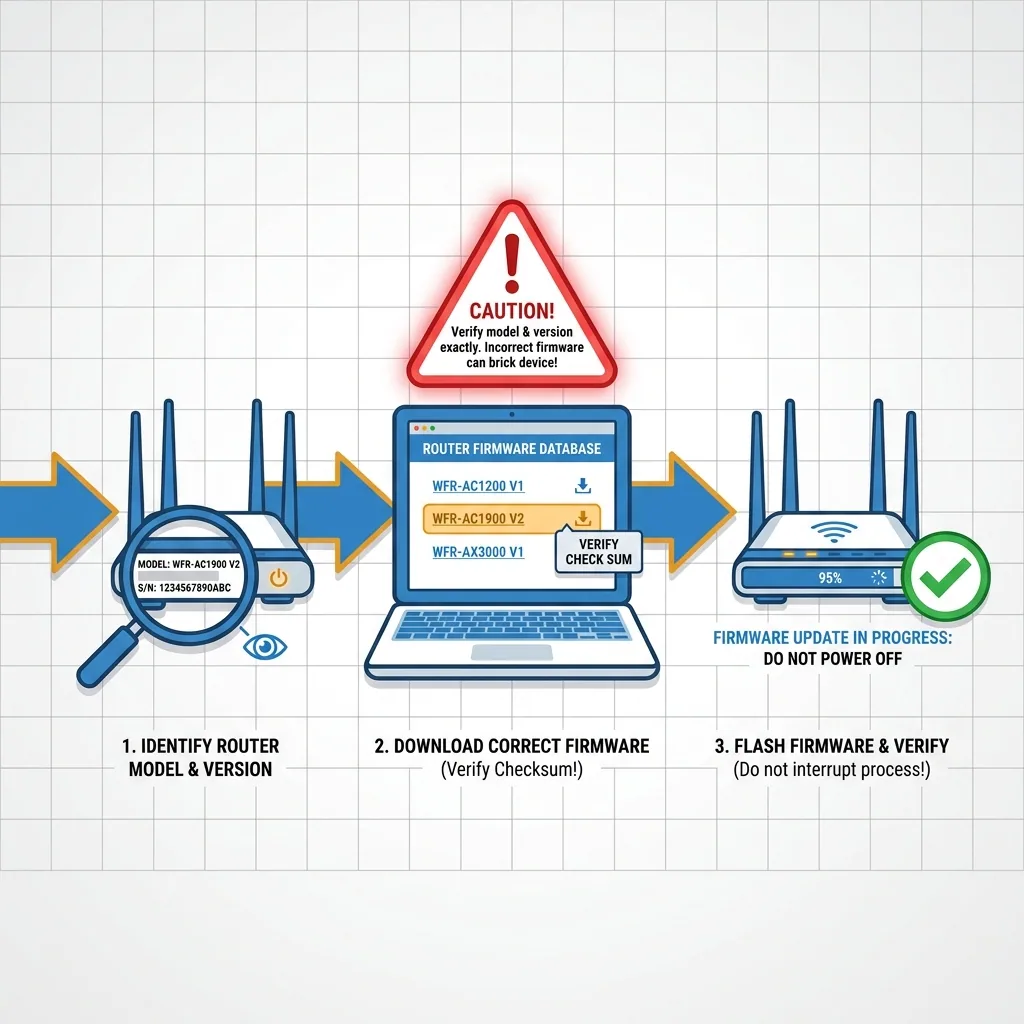
The DD-WRT router database at dd-wrt.com/wiki lists compatible builds by exact model and revision, check it before doing anything else. Flashing also voids your warranty, which is worth knowing upfront.
The Linksys WRT3200ACM has one of the highest DD-WRT compatibility ratings of any consumer router still actively sold, making it a strong option if open-source firmware is part of your plan.
Why Buying the "Wrong" QoS Router Is an Easy Mistake to Make
Price doesn't reliably predict whether a router supports true per-device bandwidth caps. Several routers over $200 offer only prioritization-based QoS, while the GL.iNet GL-AX1800 at around $100 runs OpenWrt natively and handles per-device limits with more flexibility than most. If you're comfortable in a slightly more technical interface, it's worth a serious look.
The practical consequence of getting this wrong: you set up your router expecting to cap a bandwidth-heavy device at 30 Mbps, find out the firmware doesn't allow it, and either live with the problem or start over with different hardware. For network administrators already dealing with a backlog of bandwidth-related helpdesk tickets, that's not a recoverable situation without downtime. It's also worth knowing that router-level bandwidth control has real limits in larger or more complex networks, tools like Perimetery PRO exist precisely because router QoS alone often isn't granular, persistent, or visible enough for multi-device business environments. Checking for "bandwidth limit per device" or "client rate limiting" in the router's feature list, not just "QoS", is the one thing that prevents the most common outcome.
Frequently asked questions

See every device on your network
Perimetery PRO shows live upload and download per device, and lets you cap or block any of them in one click. Runs on one Windows machine, no agents to deploy.
See pricing