
If you're managing a shared network and can't log into the router, you still have real options for throttling bandwidth on specific devices. These methods work without admin credentials, and they're more accessible than most IT teams expect.
Understand How Bandwidth Throttling Works Without Router Access
Most bandwidth control lives at the router level, where the admin sets rules per device. Without those credentials, you have to work around the router entirely.
The main approach is ARP spoofing. Your machine tells others on the network "send your traffic through me," and from there you shape or throttle it before passing it along. Think of it like rerouting cars through a side street where you control the speed limit.
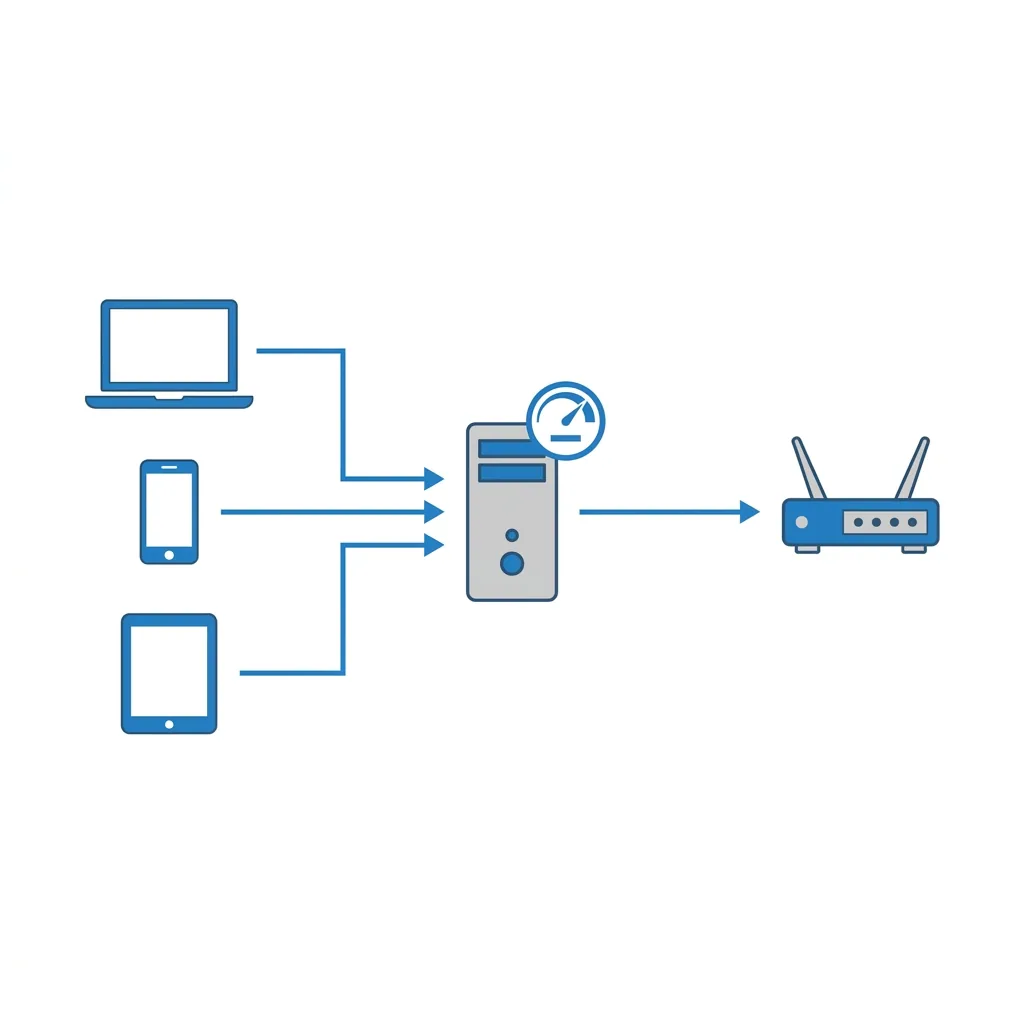
You're not changing the highway (the router), you're just redirecting specific traffic through a checkpoint you own.
This only works when all devices share the same local network. It does not grant router access, and it won't affect devices on separate networks or subnets.
Set Up Throttnux to Throttle Devices on Linux
Throttnux is a Linux-based tool that automates ARP spoofing and lets you set per-device bandwidth limits from a simple terminal menu. It runs cleanly on Ubuntu and other Debian-based distros, making it a practical option for network admins who already live in the terminal.
First, install the dependencies:
sudo apt update
sudo apt install dsniff net-tools -y
Then clone and install Throttnux:
git clone https://github.com/throttnux/throttnux.git
cd throttnux
sudo bash install.sh
Launch it with sudo throttnux. It scans your network automatically and lists connected devices with their IP and MAC addresses. Select the device you want to throttle, set upload and download limits in Mbps, and confirm.
Watch out for: Running Throttnux without enabling IP forwarding first. If you spoof ARP traffic but your machine isn't forwarding packets, the target device loses internet entirely instead of getting throttled. Enable it with
sudo sysctl -w net.ipv4.ip_forward=1before starting.
Configure Evil Limiter to Throttle Devices on Windows
Evil Limiter is the Windows equivalent. It works on the same ARP spoofing principle and runs from a Python environment, compatible with Windows 10 and 11. For IT admins managing a shared office or coworking environment without router access, it's often the fastest path to immediate relief.
With Python 3 installed, run:
pip install evillimiter
Then launch with admin privileges:
python -m evillimiter
The tool scans the local network and presents a numbered device list. Type the number for your target, enter your speed limits, and Evil Limiter handles the ARP spoofing and traffic shaping automatically.
The most common failure point is Npcap. Evil Limiter requires Npcap (not WinPcap) to capture and manipulate packets. If you get an error on launch, download Npcap from npcap.com and install it with WinPcap API compatibility mode enabled.
Both ARP-based methods require keeping your machine running and on the network for throttling to stay active. The moment your session ends, the target device returns to full speed. If persistence matters, the next method is worth the extra setup time.
Route Devices Through a Second Router You Control
This method skips ARP spoofing entirely. You physically insert a second router between the main router and the devices you want to manage.
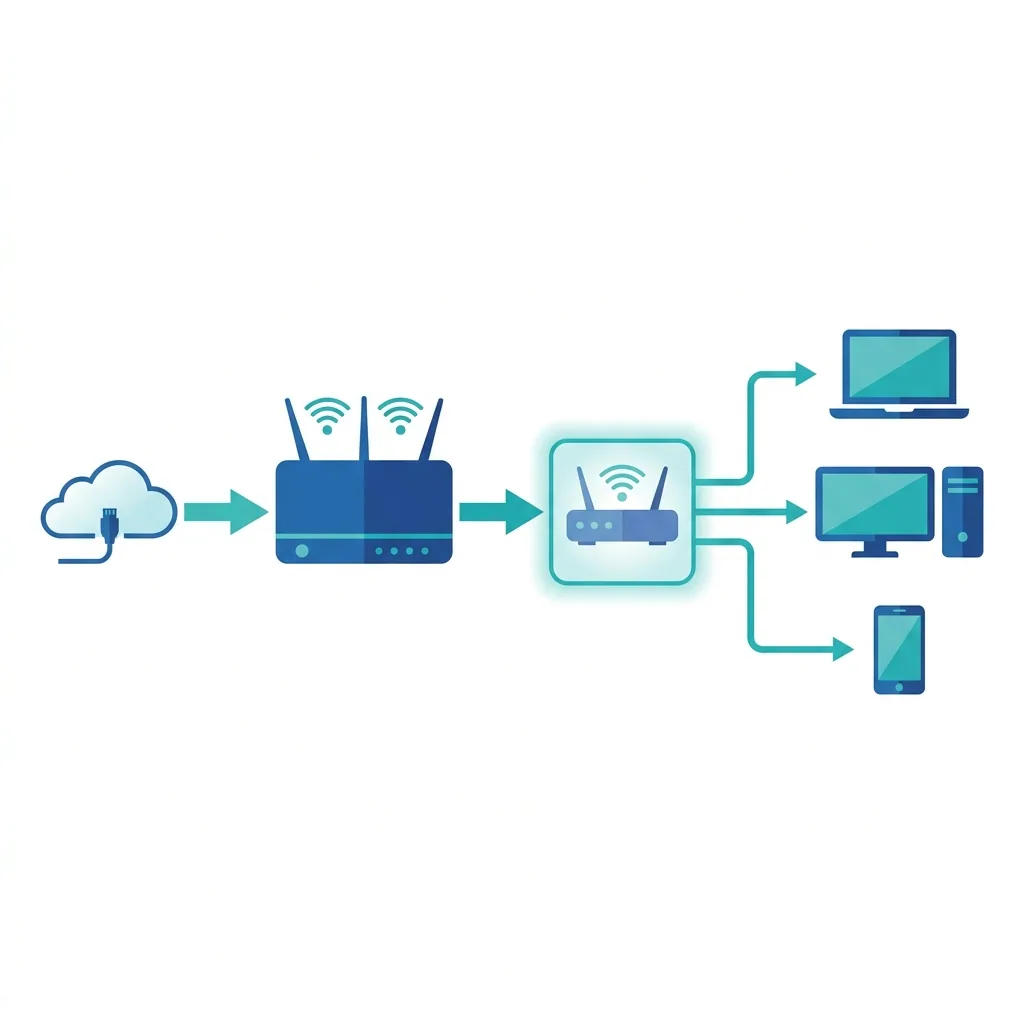
Since you own the second router, you have full admin access and can set any bandwidth rules you want.
Set Up the Second Router
Log into your second router's admin panel (typically 192.168.1.1 or 192.168.0.1). Set it to "repeater" or "wireless client" mode so it pulls the existing WiFi signal and rebroadcasts it under a new network name.
Configure Bandwidth Controls
Once devices connect to the second router, navigate to its QoS (Quality of Service) settings. Most consumer routers, including budget TP-Link and ASUS models, include a QoS menu where you can assign per-device upload and download caps.
When to Choose This Method
This is the most stable option of the three. There's no session to maintain, no script to keep running. For IT managers in small-to-mid-size businesses who need a reliable fix without waiting on a router admin, a spare router on hand can solve the problem in under an hour.
The tradeoff is that devices have to actively connect to the second router, so it won't work if the target won't switch networks. One failure point worth knowing: if your second router uses the same IP subnet as the main router (both on 192.168.1.x, for example), you'll get IP conflicts that break connectivity entirely. Change the second router's LAN subnet to something like 192.168.2.x before connecting devices to it.
In short: You can throttle specific devices on a shared network without touching the main router. Each method works. The right one depends on your OS, your hardware, and how long you need the limit to hold.
You've now got a working path to limit bandwidth per device without router access, whether that's a quick ARP spoof session or a persistent middleman router setup. If your situation calls for something more permanent, tools like Perimetery PRO take a different approach entirely: MAC address-based policies that persist across restarts and IP changes, enforced from a single host without touching the router or installing anything on client devices. But for the scenarios above, make sure IP forwarding is enabled before running any ARP-based tool, or you'll cut off access completely instead of just slowing it down.
Frequently asked questions
pfctl tool via Terminal. On Linux, tc (traffic control) paired with iproute2 gives you granular per-interface bandwidth limits with command-line precision. Each tool works independently on the device itself, so no router access is required.tc on Linux operate entirely within the device's own network stack, so they don't need router credentials or network admin privileges. The tradeoff is that limits only apply to that one device; you can't cap traffic from other devices on the same network this way.

See every device on your network
Perimetery PRO shows live upload and download per device, and lets you cap or block any of them in one click. Runs on one Windows machine, no agents to deploy.
See pricing