
Steam downloads use bandwidth in MB/s (megabytes per second), but your internet plan is sold in Mbps (megabits per second), and that gap causes a lot of confusion about why downloads look "slow" even on a fast connection. A 100 Mbps internet plan translates to roughly 12.5 MB/s of actual download throughput in Steam, not 100. If you've ever stared at Steam showing 11 MB/s and wondered why your "100 meg" connection isn't delivering, that's the whole explanation right there.
Steam reports download speeds in MB/s, which will always be about 8 times lower than the Mbps figure your internet provider advertises.
MB/s vs Mbps, Why Steam's Download Speed Looks Different From Your Internet Speed
The difference comes down to bits versus bytes. One byte equals 8 bits, so to convert your ISP's Mbps rating into what you'll actually see in Steam, divide by 8. A 200 Mbps plan gives you roughly 25 MB/s in Steam.
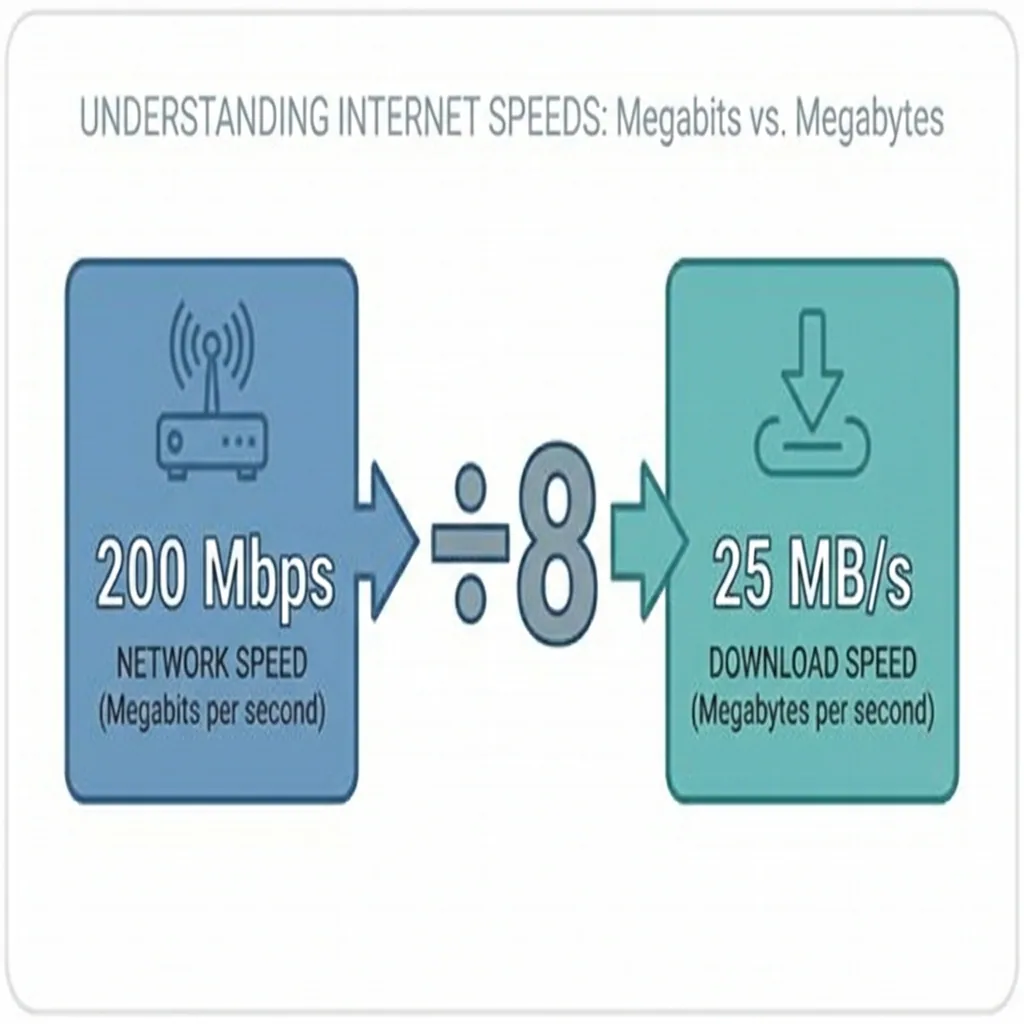
A 500 Mbps plan gets you around 62.5 MB/s. That's it. There's no bug, no throttling, just a unit conversion that nobody explains when you sign up for internet service.
Every speed-related spec in networking (your router, your ISP plan, your ethernet cable rating) uses bits, while file sizes and download managers, including Steam, use bytes. The numbers will never match, and that's normal. Steam's server-side cap sits around 104 MB/s, so if you have a gigabit connection and expect 125 MB/s, you'll hit Steam's ceiling before your ISP's. For most households, and most shared office or coworking networks, that cap is completely irrelevant.
Steam Download Speed by Connection Type, What to Expect
Here's how common ISP speeds map to real Steam download rates:
| ISP Plan (Mbps) | Steam Download Speed (MB/s) | ~Time to Download a 50 GB Game |
|---|---|---|
| 25 Mbps | ~3.1 MB/s | ~4.5 hours |
| 50 Mbps | ~6.25 MB/s | ~2.2 hours |
| 100 Mbps | ~12.5 MB/s | ~1.1 hours |
| 200 Mbps | ~25 MB/s | ~34 minutes |
| 500 Mbps | ~62.5 MB/s | ~14 minutes |
| 1 Gbps | ~125 MB/s | ~7 minutes |
These are theoretical maximums. In practice, most people on a 100 Mbps plan won't sustain 12.5 MB/s, Wi-Fi overhead alone can knock 20-40% off that figure before you've factored in network congestion or server load. On a shared office network with 50+ devices competing for the same pipe, a single employee running an uncapped Steam download can visibly degrade performance for everyone else. A wired ethernet connection is the single fastest way to close the gap for that one device.
How to Check and Limit Steam's Bandwidth Usage
You can see Steam's real-time download speed in the bottom bar of the client while a download is active. For more control, go to Steam > Settings > Downloads, that screen shows your current download region, any active bandwidth limits, and your download history.
To set a bandwidth limit, check the box for "Limit bandwidth to" and enter a value in KB/s. Since 1,000 KB/s equals roughly 1 MB/s, setting it to 5,000 caps Steam at about 5 MB/s. A soft cap around 40-50% of your total bandwidth usually keeps downloads moving without noticeably affecting everything else on the network.
The large game update that tanks the whole office's video calls mid-afternoon is almost always a Steam download running in the background with no limit set, and it's the kind of ticket that lands on an IT manager's desk with zero useful context about which device caused it. It's a fixable problem once you know where to look, either at the Steam client level or by enforcing bandwidth limits at the network level using a tool like Perimetery PRO, which lets administrators cap individual devices without touching the machine itself.
Schedule large Steam downloads for overnight using the "Only auto-update games between" time window in Settings > Downloads so they never compete with your network's peak usage hours.
Why Steam Isn't Using Your Full Bandwidth, Common Causes and Fixes
If your Steam download speed is much lower than the math above suggests it should be, a few things are usually responsible.
Wrong download region
Steam routes downloads through regional content servers. If you're pointed at a congested or distant region, speeds suffer noticeably. Go to Settings > Downloads > Download Region and switch to the closest option, or try a neighboring region if your local one seems slow. This is the most overlooked fix, switching regions has a more immediate impact than almost anything else you can try.
Wi-Fi interference
Speeds that fluctuate wildly, drop to near-zero, then spike back up are almost always a Wi-Fi issue, not a Steam problem. A wired ethernet connection will outperform Wi-Fi for sustained large downloads in nearly every setup. If running a cable isn't practical, moving closer to the router or switching to the 5 GHz band usually helps.
Disk write speed
On older mechanical hard drives, the disk itself can become the bottleneck before your internet connection does. If your download speed in Steam looks reasonable but installation is crawling, the drive is the constraint.
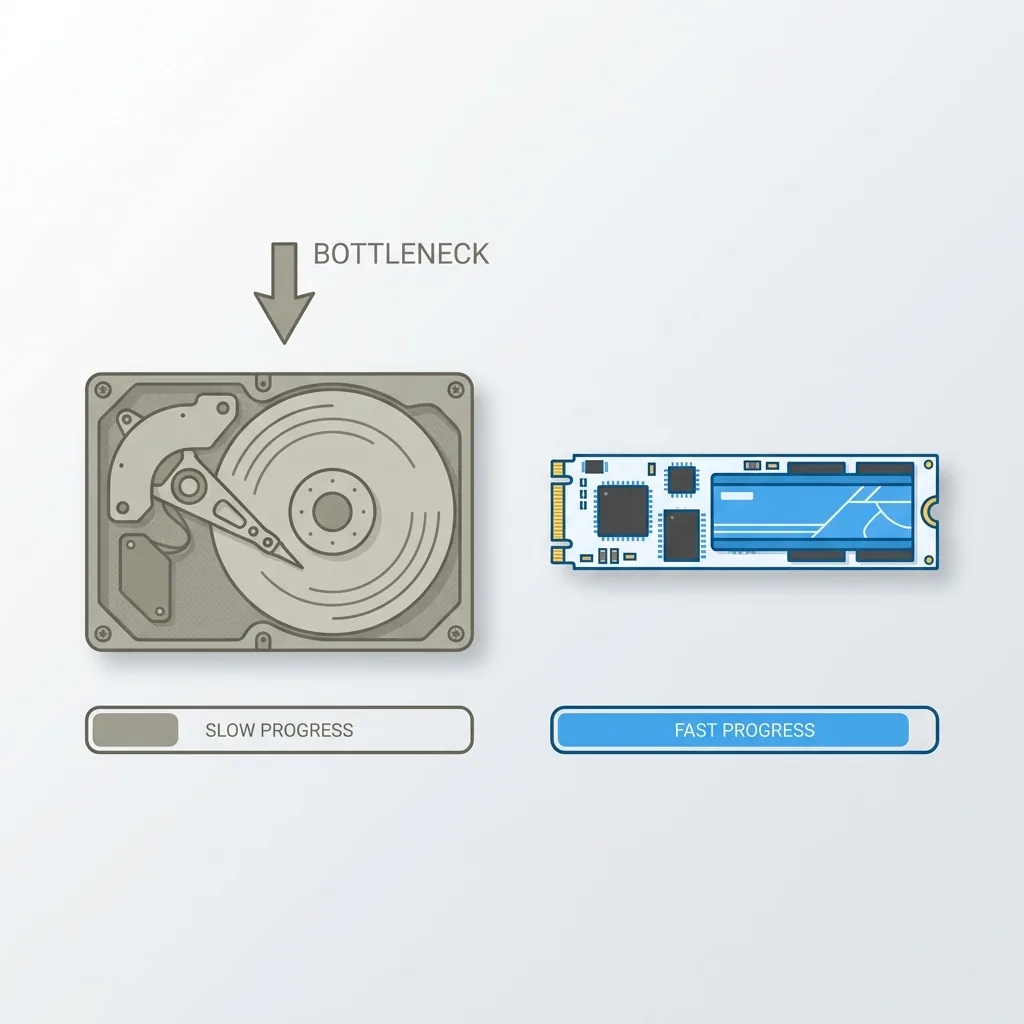
Pointing Steam's library folder to an SSD fixes this immediately.
Steam's peak hours
Steam's content servers get hammered on Tuesday evenings after major game updates and during big sales. There's not much you can do except schedule downloads for off-peak times, which circles back to the overnight scheduling tip above.
How to Optimize Steam Downloads Without Hogging Your Network
Disabling Allow downloads during gameplay in Settings > Downloads prevents Steam from competing with your active session for bandwidth. For environments with multiple gaming PCs on the same network, a coworking space with a gaming lounge, or an office where developers run game builds, Steam's built-in LAN content caching (via Steam Local Network Game Transfer) lets one machine act as a local source so a game only downloads from Steam's servers once.
The most common mistake with LAN caching is enabling it on the wrong machine, or not realizing both devices need to be on the same local network with the feature active on the host. It also won't help if the game versions don't match between machines. When it works, it meaningfully cuts external bandwidth consumption, but test it on a small game first before assuming the setup is correct.
For IT teams managing shared networks where individual device behavior is the real problem, client-side Steam settings only go so far. Network-level bandwidth control gives you enforcement that doesn't depend on users configuring their own software correctly.
Once you understand that Steam's MB/s figure will always be roughly one-eighth of your Mbps plan, and that your download region has more impact on real-world speed than almost anything else, most Steam download problems become straightforward to diagnose and fix.
Frequently asked questions



See every device on your network
Perimetery PRO shows live upload and download per device, and lets you cap or block any of them in one click. Runs on one Windows machine, no agents to deploy.
See pricing