
If your guests are hogging bandwidth while your team is trying to work, a cap on your guest WiFi network fixes it fast. Most modern routers have this setting built in, the trick is knowing where to find it. Here's how to get it done, whether you're managing a single office or a shared network across multiple locations.
Understand Why Guest WiFi Bandwidth Limits Matter
Your total internet connection is a shared pipe. Every device on your network pulls from the same bandwidth, and without limits, one guest streaming 4K video or running a backup can degrade performance for everyone else, including staff who depend on that connection for video calls and cloud applications.
The most common mistake IT managers make here is assuming the guest network is already isolated or throttled by default. It isn't. Most routers create a separate SSID for guests, which keeps them off your local devices, but they still share your full internet speed unless you explicitly set a cap. In shared environments like offices, coworking spaces, or educational facilities, that distinction matters a lot.
Bandwidth limiting carves off a specific portion of your connection for guests and holds them to it.
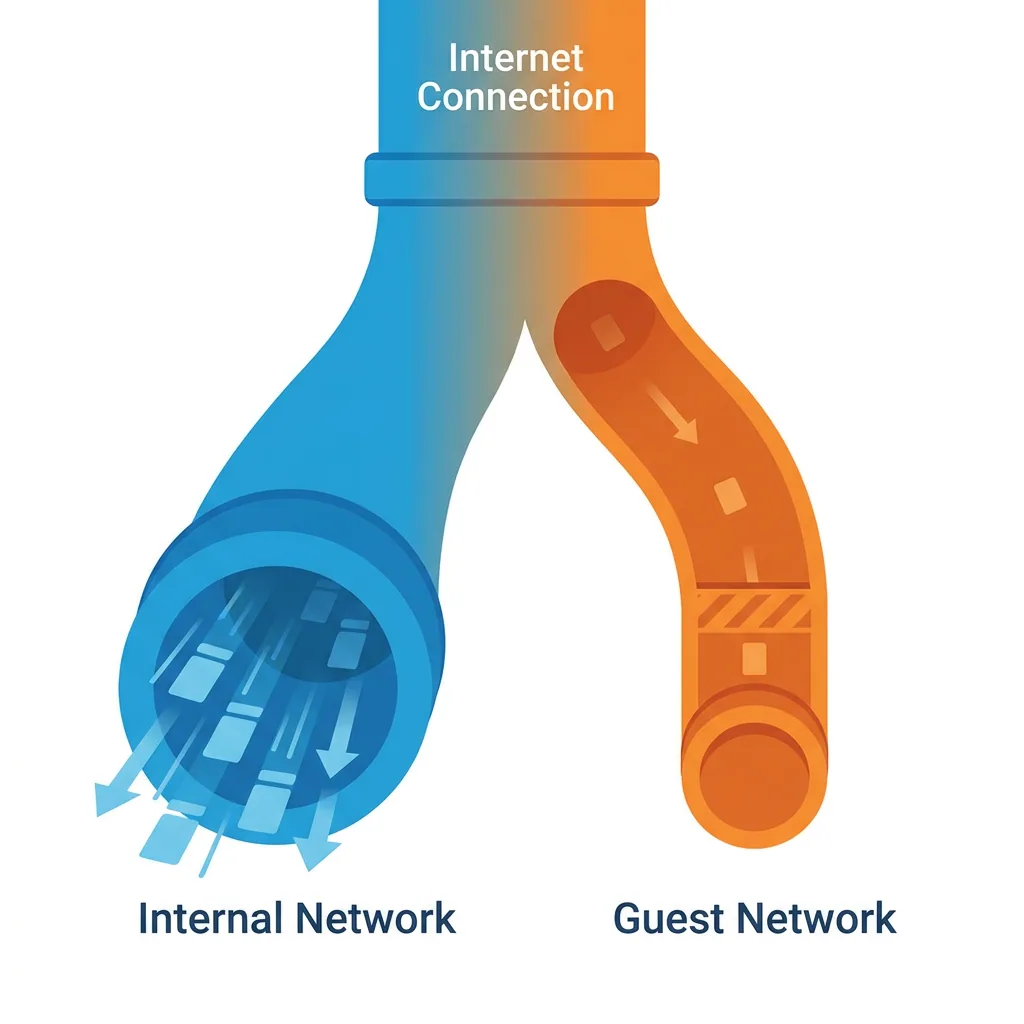
Your internal devices get the rest.
Log Into Your Router's Admin Panel
Open a browser on any connected device and type your router's IP address into the address bar. The most common defaults are 192.168.1.1 or 192.168.0.1. If neither works, check the label on the bottom of your router.
You'll be prompted for a username and password. If you've never changed them, they're printed on the router label. "admin/admin" is a common factory default, change it now if you haven't, because a guest network with default admin credentials is a real security exposure, especially in multi-tenant environments.
Watch out for: Logging into a satellite node on a mesh system instead of the primary hub. Satellite nodes rarely have full admin controls, and changes made there may not apply network-wide. Access the app or the primary router's IP address instead.
Set Bandwidth Limits on Your Guest WiFi Network
This step varies by brand, but the concept is the same everywhere: find the guest network settings, look for a bandwidth or speed limit option, enable it, and set your caps. Here's where to look on the most common routers.
TP-Link
Go to Advanced > Wireless > Guest Network. Enable your guest network if it isn't already, then find Bandwidth Limit and toggle it on. Set your download and upload caps in Mbps. For most office environments, 10-15 Mbps down and 5 Mbps up is enough for guest use without touching your staff's connection.
ASUS
Open the Guest Network tab from the main dashboard. Select the network you want to limit, then enable Bandwidth Limiter. ASUS labels the fields "Max Upload Bandwidth" and "Max Download Bandwidth." Keep Access Intranet turned off while you're in there.
Netgear
Bandwidth control on Netgear varies by model. Newer Nighthawk firmware includes a QoS or Bandwidth tab under advanced settings. On older models, granular guest limits may not be available natively, the QoS step below covers what to do instead.
Linksys
On the Velop mesh system, guest speed limits are in the app under Guest Access > Edit. On older Linksys routers without app support, bandwidth throttling isn't built in and QoS is your best option.
Use QoS Settings to Prioritize Internal Users Over Guests
If your router doesn't have a dedicated guest bandwidth cap, QoS (Quality of Service) is the next best tool. Instead of a hard ceiling, QoS assigns priority levels, your main network or specific devices get high priority, and the guest network gets low.
Look for QoS under Advanced Settings. Some routers call it Traffic Management or Bandwidth Allocation. Set your work devices or main network to high priority and leave the guest network at normal or low. Guests get whatever's left over after your priority devices have taken what they need.
Honestly, for most business setups, QoS works just as well as a hard cap and adapts dynamically. A static 10 Mbps limit wastes bandwidth when no guests are connected; QoS lets guests use more when your network is idle and pulls it back when staff need it. The QoS setting is almost always available, even on mid-range hardware, it's the one most IT teams skip because it sounds more complex than it is.
If you're running multiple access points across a larger environment, router-level settings start to show their limits. That's where dedicated bandwidth management software like Perimetery becomes the more practical approach, enforcing per-device policies centrally, without touching each router individually.
Verify the Limits Are Actually Working
Connect a personal device to the guest network and run a speed test at fast.com or speedtest.net.

The result should be at or near your cap, not your full connection speed.
If the speed test shows your full speed, a few things are worth checking. First, confirm you saved changes to the guest SSID and not your main network. Second, some routers require a full reboot before bandwidth limits take effect. Third, limits on certain routers apply only to new connections, any device already connected when you made the change needs to disconnect and reconnect before the cap kicks in.
The reboot step is what catches most people. Save your settings, reboot the router, reconnect to the guest network, and test again. A guest device still pulling full speed after a reboot usually means the limit was applied to the wrong network segment.
In short: Enable the bandwidth limit on your guest network in your router's admin panel, confirm it with a speed test, and reboot the router if the limit doesn't show up right away.
Once your guest WiFi bandwidth is capped, your internal devices stop competing with visitors for the same connection. If your environment has grown beyond what a single router's guest settings can manage, multiple access points, dozens of connected devices, high staff turnover of connected endpoints, pairing router-level caps with device-level bandwidth policies gives you the visibility and control that router admin panels simply weren't designed to provide.
Frequently asked questions


See every device on your network
Perimetery PRO shows live upload and download per device, and lets you cap or block any of them in one click. Runs on one Windows machine, no agents to deploy.
See pricing